


11 Seplos BMS Software Problems You Might Face And How to Fix Them
1. Connection method of the upper computer
Preliminary preparation
- A communication line
- A USB to RS485 adapter
- A computer with the Windows 7 or Windows 10 operating system
- Seplos' battery management system software (can be downloaded from Seplos' official website)
Step 1: Connect the communication cable to the 485 interface of the adapter and battery, and then connect the USB end of the adapter to the computer
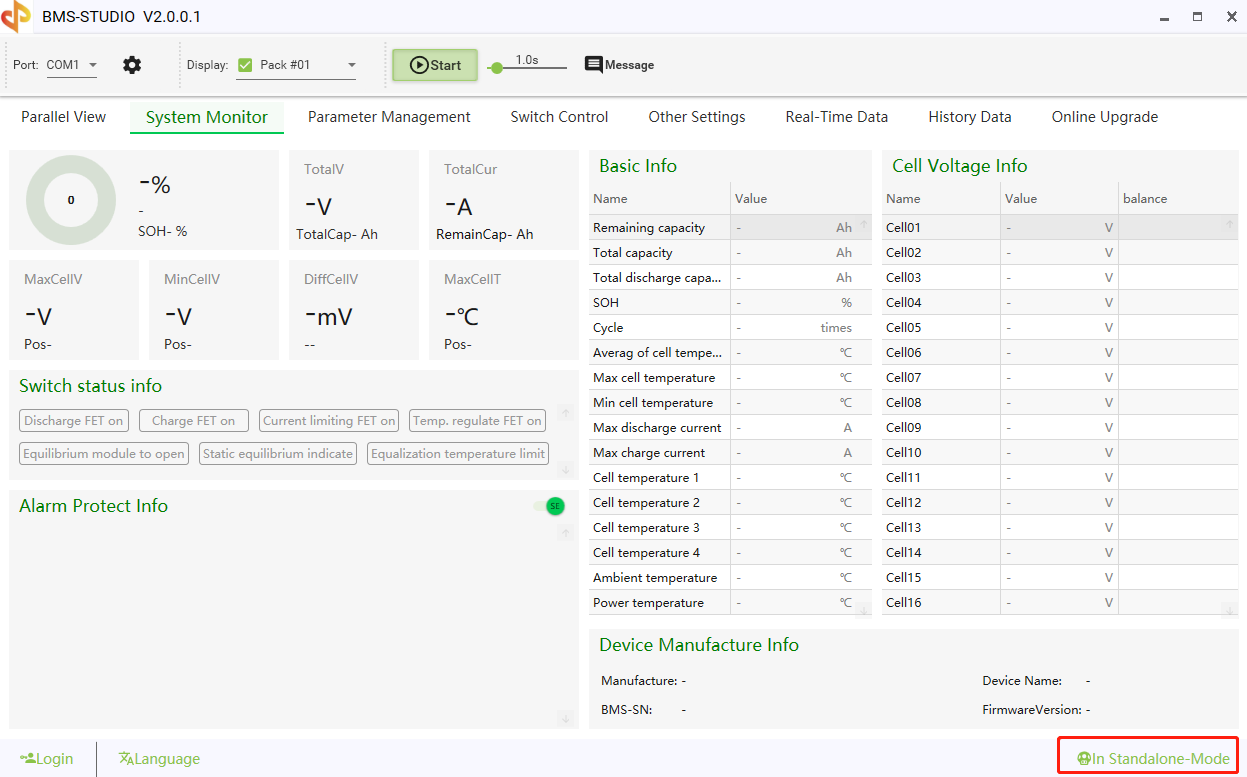
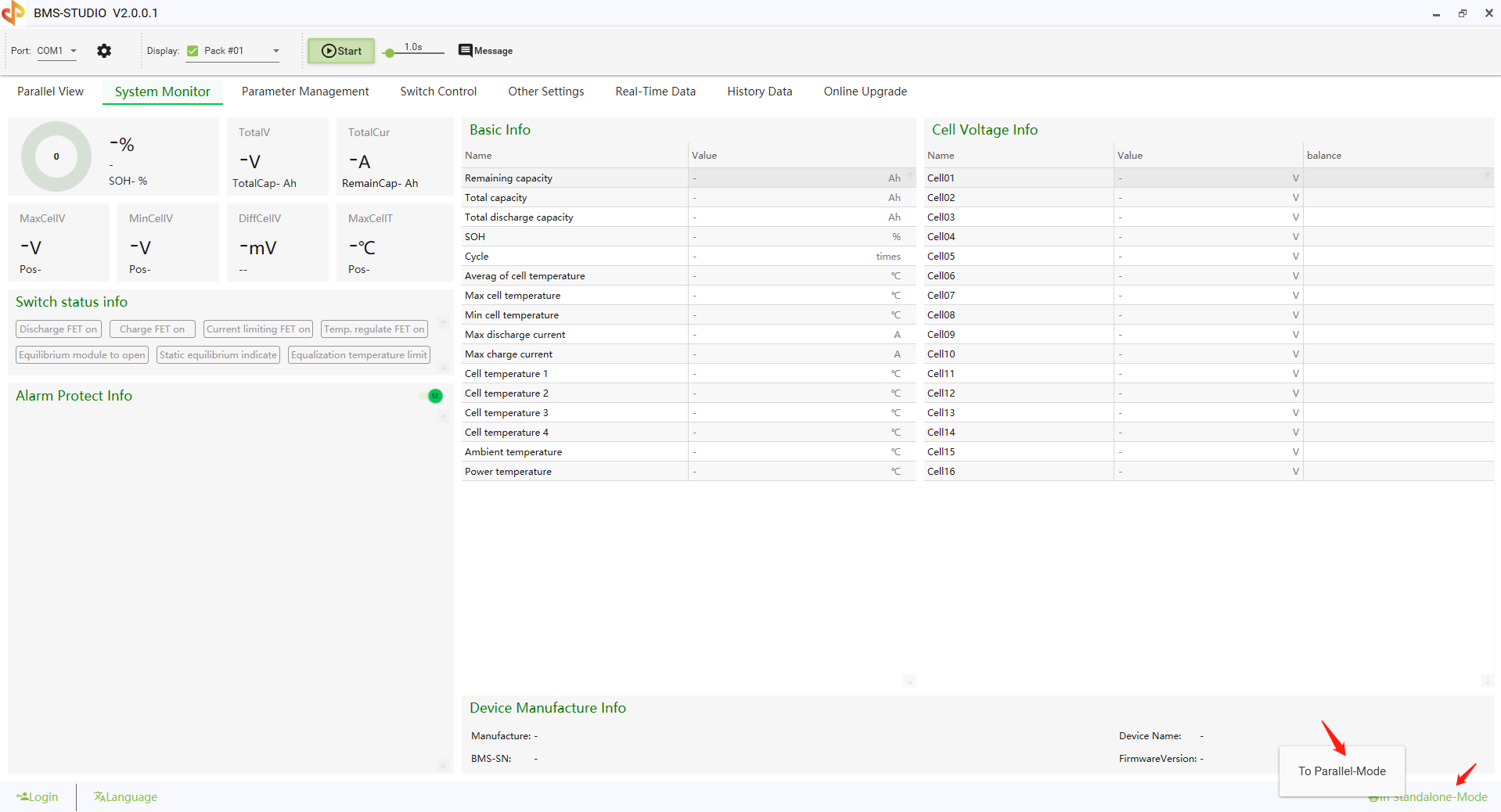
Step 2: Open the battery management software and select the stand-alone mode status (default status) in the lower right corner. You cannot switch to parallel mode when only one battery is connected, otherwise, the connection will fail.
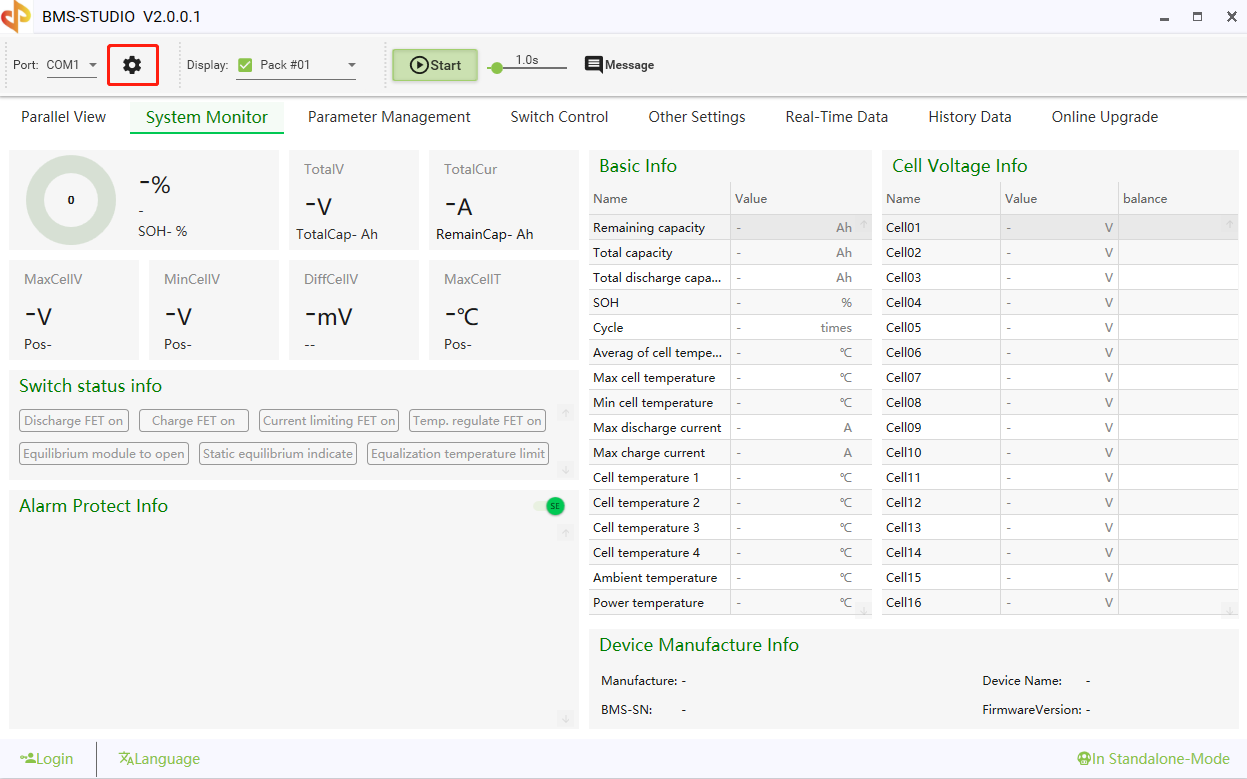
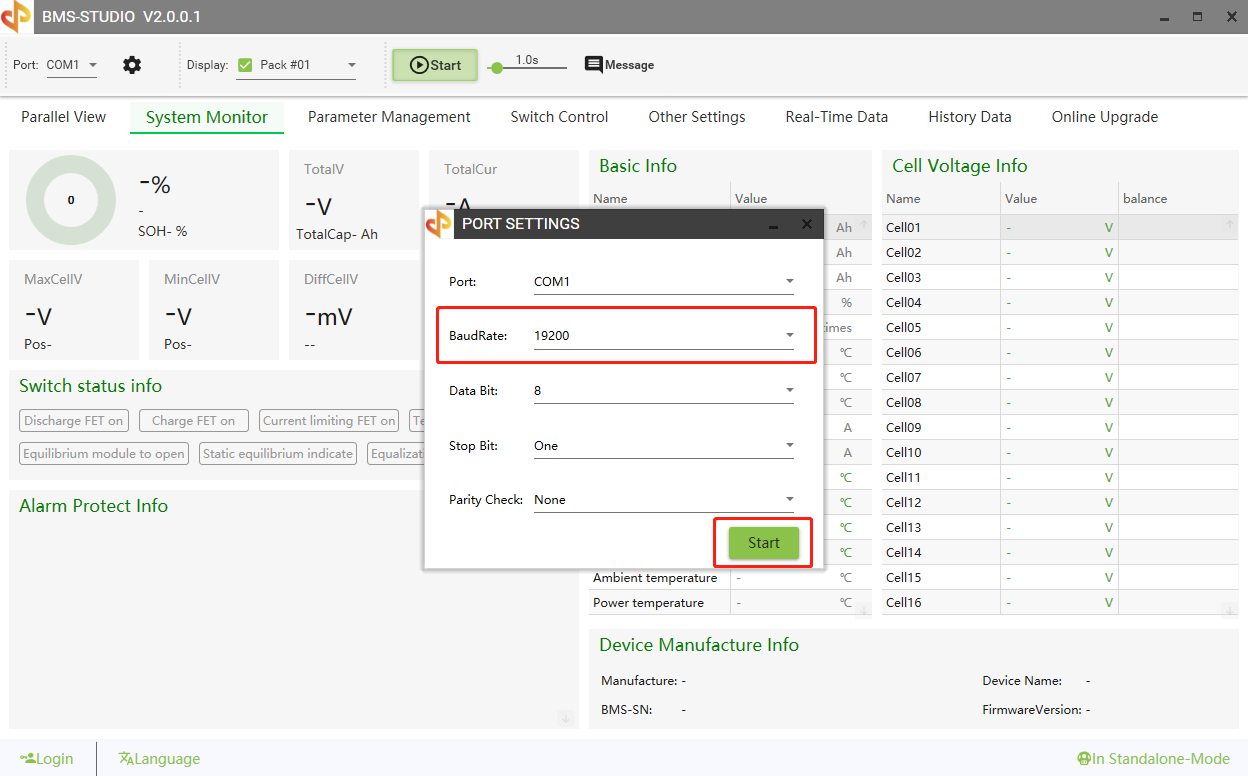
Step 3: Click Port Settings, select the port, select the baud rate of 19200, and click the Start button.
2. Parallel connection method of BMS 3.0
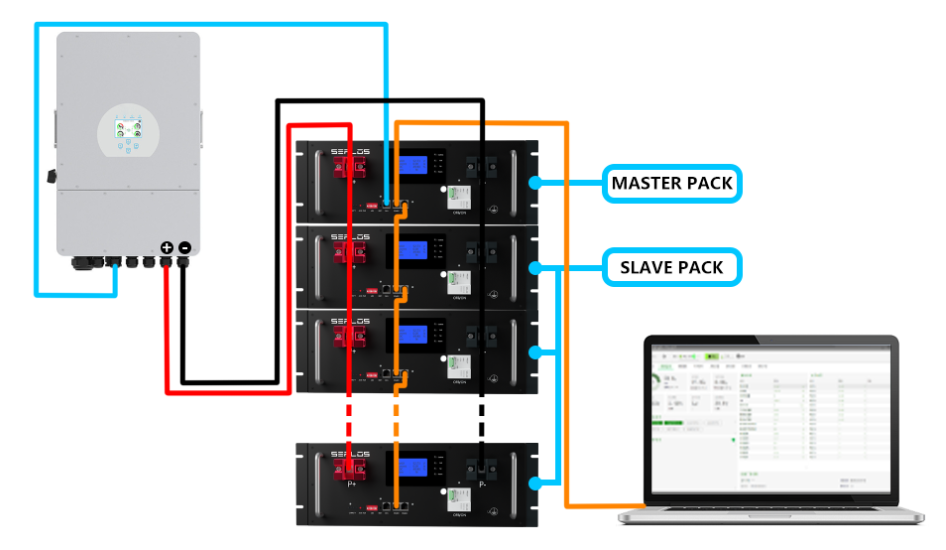
Step 1: Select the host, connect the CAN communication port of the host to the inverter, and connect the RS485-1 communication port to the host computer. Then use a communication network cable to connect the RS485-2 communication port of the host to the RS485-1 communication port of the slave. The remaining Batteries participating in parallel connection can be connected to the RS485-1 communication port through the RS485-2 communication port.
Step 2: Switch the operating mode to parallel mode
3. BMS cannot be started, or it shuts down three seconds after starting.
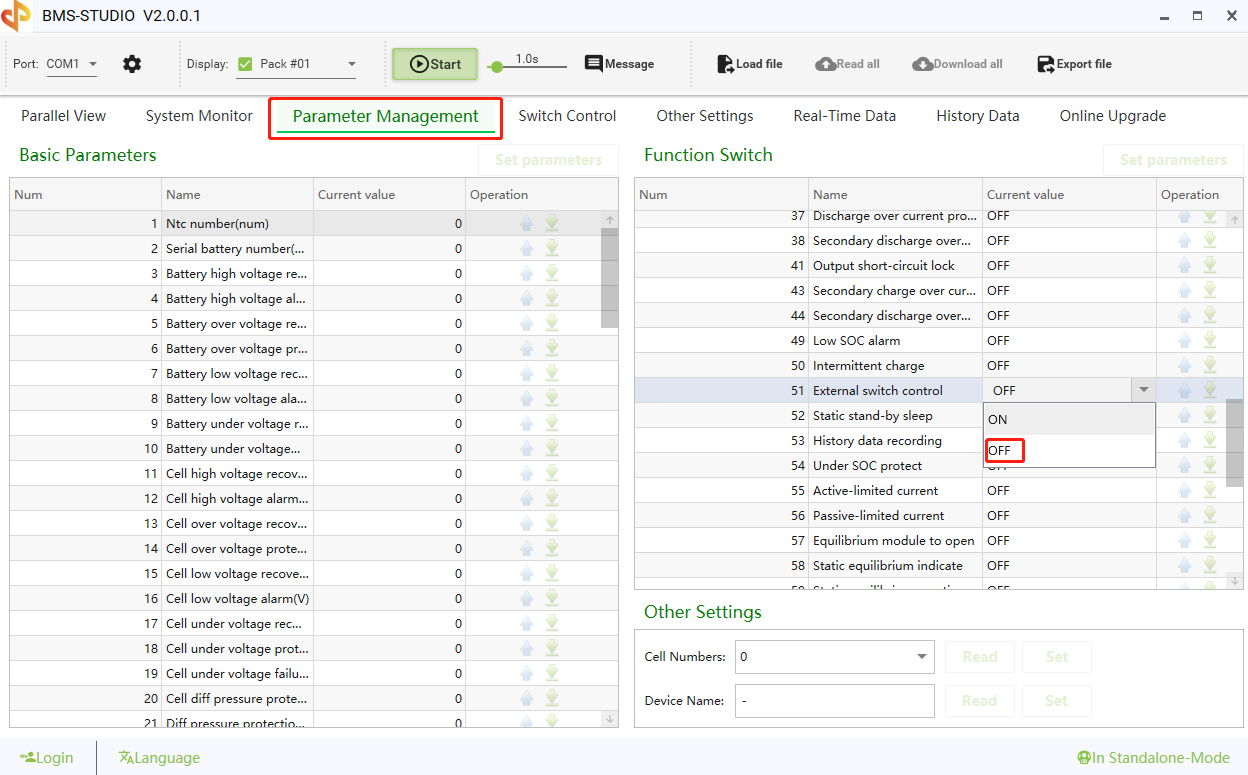
Cause of failure: The external switch of the BMS is open
Solution one: Use 4Pin self-locking switch(The 4Pin self-locking switch needs to be purchased separately), just connect to the switch interface of the BMS.
Solution two: Use a DC power supply with a voltage above 48V or an inverter to charge the battery to start the BMS, connect the host computer to turn off the external switch, restart the battery, and then press the reset switch for three seconds.
4. LCD can not display data
Cause of failure: The LCD display function of the BMS is turned off
Solution: Turn on the LCD display function through the host computer.

If the LCD still cannot display data, you need to check whether the socket connecting the LCD to the BMS is loose, or there is poor contact due to conformal paint, resulting in data failure to be transmitted.
5. After the battery has been used for a period of time, the SOC display is inaccurate
Step 1: Turn off the SOC capacity low protection through the host computer
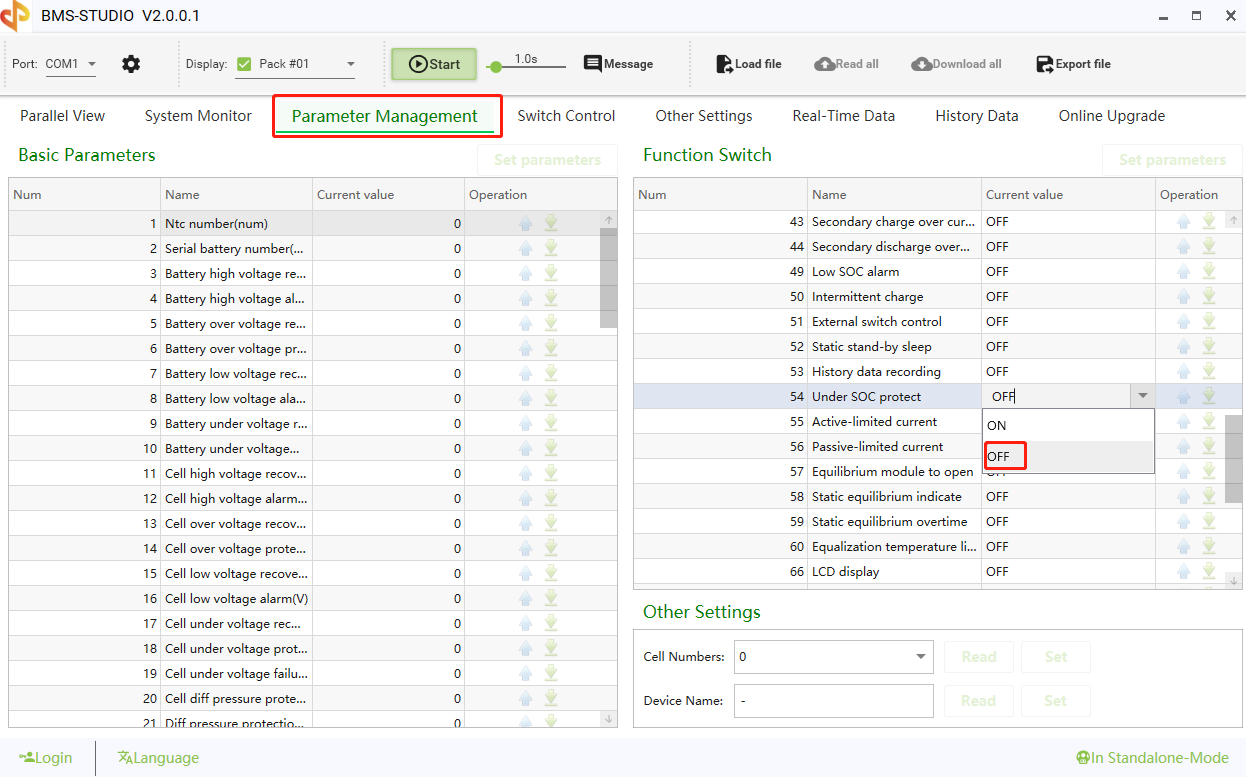
Step 2: After charging the battery once, complete the discharge again to complete SOC capacity learning.
Step 3: Update the BMS firmware to the latest version 0.7 or 1.3 through the host computer
6. BMS 2.0 is prohibited from being connected in parallel with BMS 3.0
Reason: BMS 2.0 adopts the negative pole scheme, and BMS 3.0 adopts the positive pole scheme. The systems are different and cannot be connected in parallel.
7. BMS lights flashing
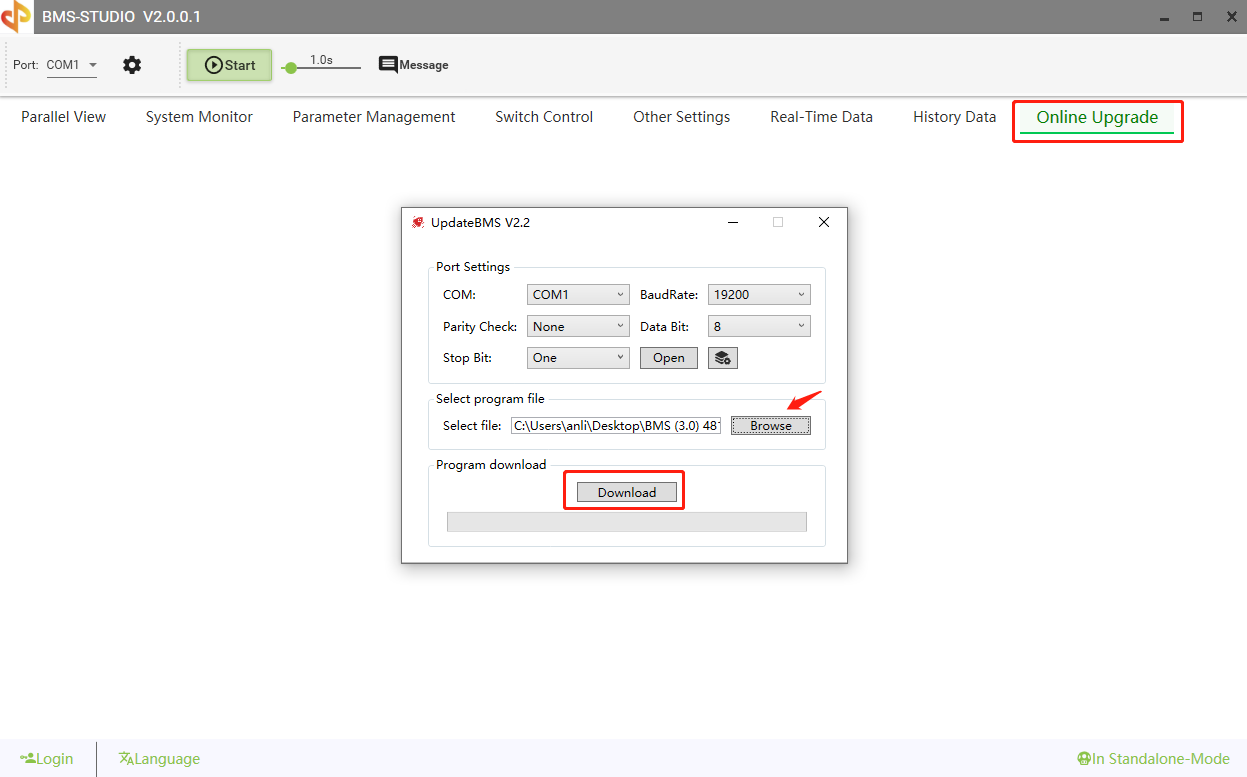
Cause of failure: Interruptions occurred during the BMS firmware update process
Solution: Keep the battery connected to the computer, open the PC software, and directly select the firmware to update without clicking the Start button.
8. SOC is abnormal, having suddenly dropped from 30% to 10%
Cause of failure: If the BMS is shallowly charged and discharged for a long time, the battery's SOC and voltage will be inconsistent. When the battery is discharging, the battery's voltage triggers a low-voltage alarm (our SOC calibration method is that both the low-voltage alarm and the high-voltage alarm will calibrate the SOC once), so this is the BMS quickly calibrating the SOC.
Solution: Updating the latest firmware of BMS 3.0 can effectively alleviate this problem, but it is also necessary to fully charge the battery every two weeks for BMS to reduce this problem.
9. The host computer port cannot be recognized
Cause of failure one: The adapter driver is missing on the computer side
Solution: Connect the adapter to the computer and check whether the port is recognized in the computer. If not, you need to install the adapter driver (the USB CH340G Drive driver can be downloaded from Seplos' official website)
Cause of failure two: The USB and RS485 adapter connection harness is detached or loose, resulting in poor contact.
Solution: Just resolder the wiring harness
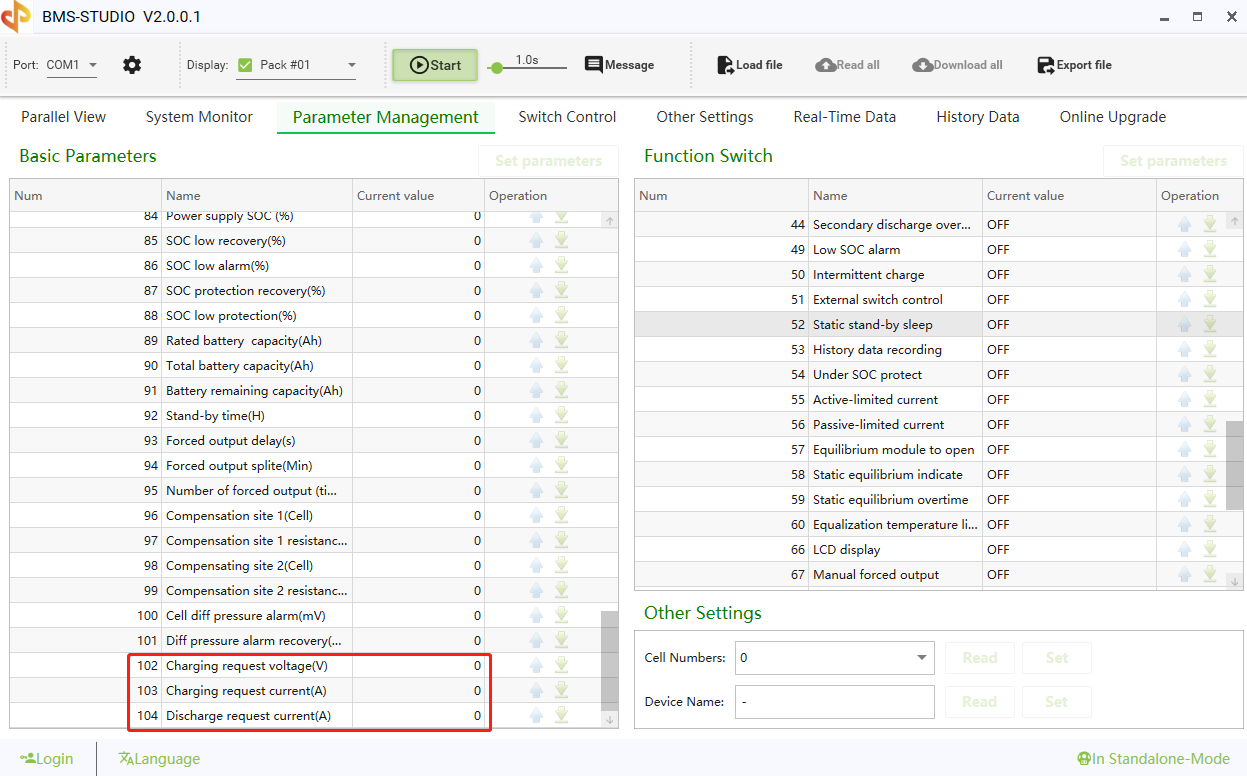
10. Recommended charging voltage, charge, and discharge current
Recommended charging voltage: 57.2V
Recommended charge and discharge current: 85A/-85A
Recommended charging voltage: 57.2V
Recommended charge and discharge current:185A/-185A
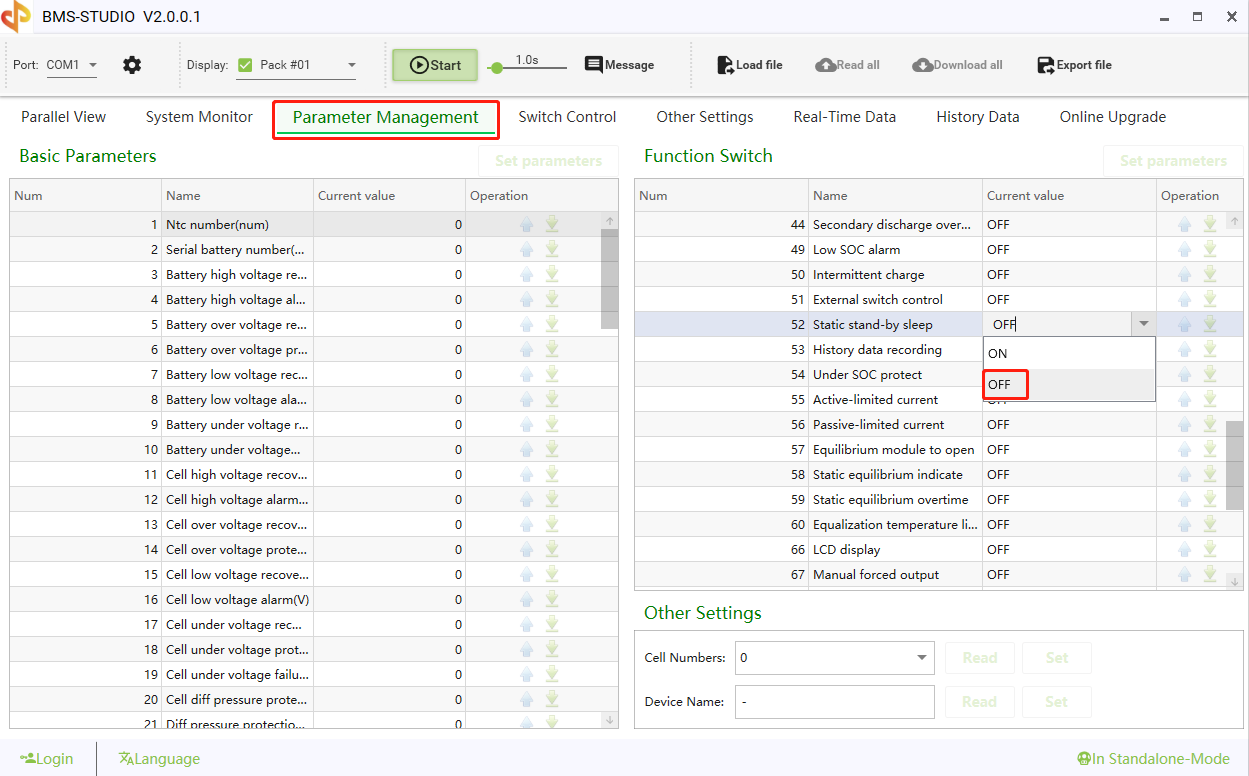
11. Standby sleep state
The BMS will trigger a shutdown after 24 hours of standby. Just connect to the host computer and turn off the standby and hibernation functions.
To improve battery system stability, start with mastering BMS software!
Sodium Batteries In The ESS
The Role Of Heating Pads In ESS
For more questions, please
contact us

+86 15079804024


Room 102, Building one, No.147, Qingfeng Road, Qingxi Town, Dongguan, China